// Whatever you were doing. Timeslice never asks you to leave it.
struct Scheduler {
    var queue: [Job] = []

    mutating func admit(_ job: Job) {
        guard job.budget > 0 else { return }
        queue.append(job)
        queue.sort { $0.deadline < $1.deadline }
    }

    func next() -> Job? {
        queue.first { $0.isReady(at: .now) }
    }
}
Welcome back — resume “Code Review”?
Timeslice paused it when your screen turned off. Resume timing, or leave it paused?
1h 38m without a break
Pause for 10m, or keep going?
Meetings started on iPhone
Design Review paused on this Mac at 4:12 PM.
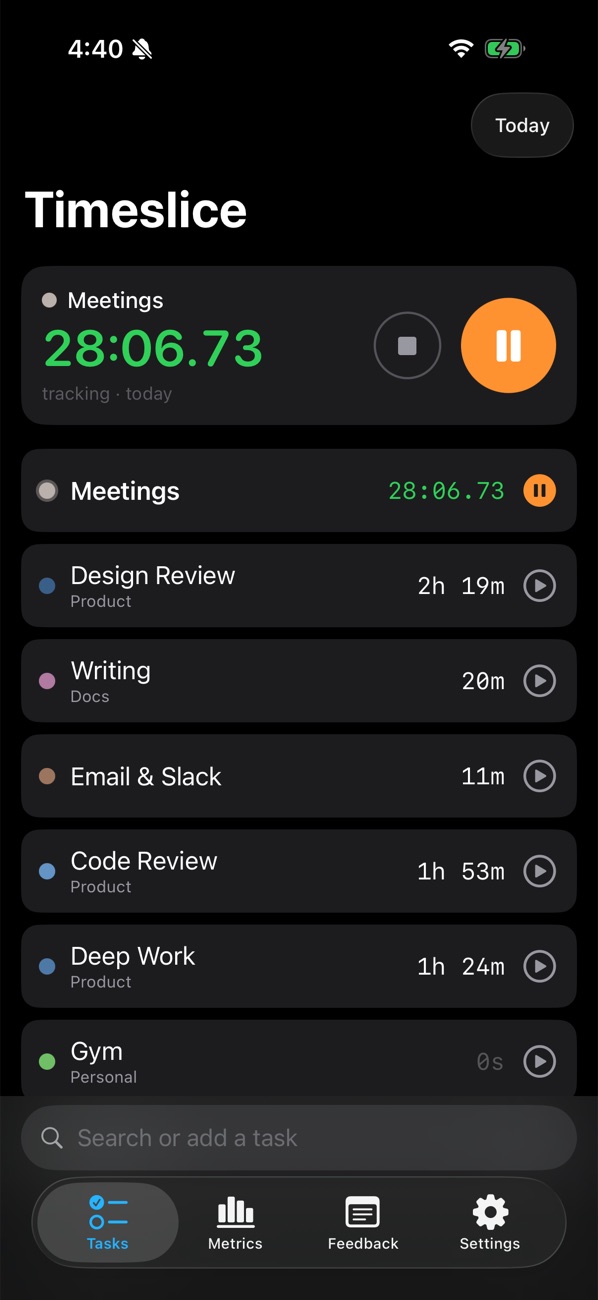
Start a task without leaving what you're doing.
Hold fn ⌘ ⇧, tap A, type a name. Tab files it into a project. It's timing before you've let go.
Switch tasks like you switch apps.
Hold fn ⌘ ⇧ and tap \ to flick through tasks, most recent first. ] goes back. Let go, and you've switched.
Walk away. It notices.
Screen off means you're gone, so the timer pauses, back-dated to when you left. Lunch never counts as work.
A nudge, not an interruption.
Too long without a break, across tasks, and a note floats in the corner. Ignore it and it's gone.
Pick up your phone. The Mac lets go.
Start a task on the iPhone and the Mac stops its own timer, then tells you so. No minute counts twice.
Every device. One timeline.
Work laptop, phone, the personal laptop at home. Each one syncs through your own Google Drive, and only one timer runs across all of them — start on one, and the one you left stops itself.
Where the day actually went.
Tracked against your waking hours, focus from unbroken blocks, every switch counted — and a lane for each of your three devices. This is the real app, showing this day.
Then zoom out.
Day, week, month, six months, a year. Everything on the page follows the range you pick.
Projects group. Tags cut across.
A task lives in one project. A tag can span many — work here covers Product, Docs and two Inbox tasks — so one goal can cover all of it.
Plan the week. Or the month.
Per day gives every day its own share. Catch up fair-shares what you're behind on across the days left — so you plan with what's real.
Share your screen, not your day.
fn ⌘ ⇧ P drops the menu bar to just its icon, and Timeslice's windows go blank to screen sharing.